
Kitchen Display · KDS
Manage Kitchen Orders on One Screen
With a kitchen display (KDS), split incoming orders by station, manage prep sequence, and see instantly what the kitchen team should prepare.
- One screen the full prep queue
- Station-based hot · cold · bar
- Live status new · preparing · ready
- Digital flow reduce paper ticket need
Kitchen order flow
What Happens in the Kitchen When an Order Arrives?
-
01
Order is confirmed
The order enters the operations system and is sent to the kitchen queue.
-
02
Split by station
Items appear on the relevant prep stations.
-
03
Prep starts
Kitchen staff take the order and update prep status.
-
04
Item ready
Prepared items or the full order are marked ready.
-
05
Service / packing
Floor or packing staff see that the order is ready.
Station management
Let Each Station See Its Own Work
Split the kitchen display into stations that match how your kitchen runs.
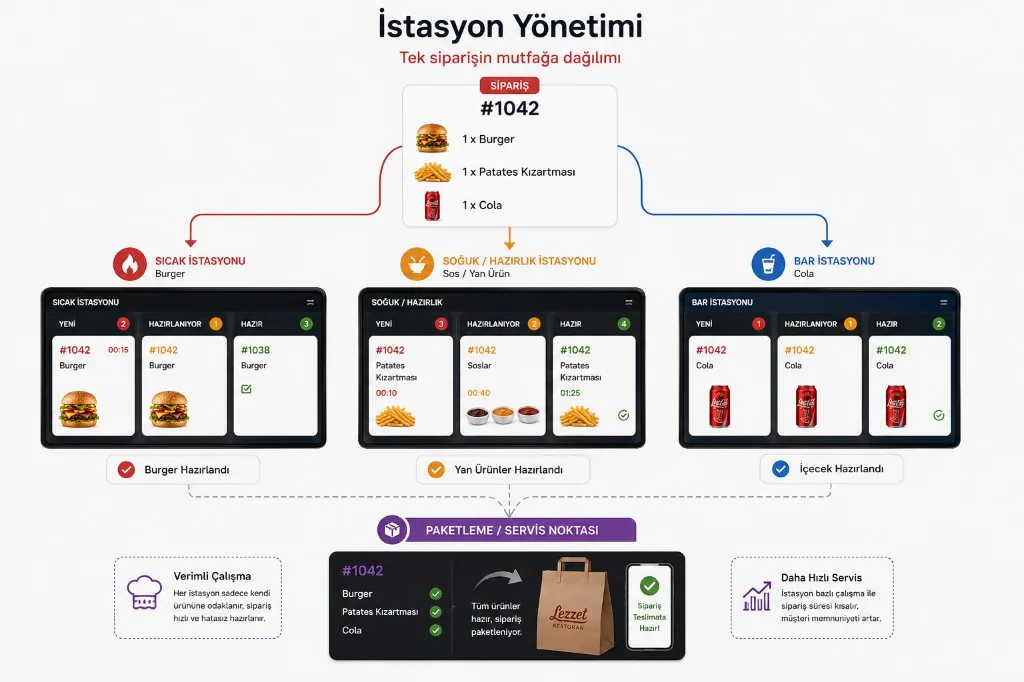
Hot Station
Burgers, pizza, mains, and hot items.
Cold Station
Salads, meze, and cold items.
Bar
Drinks, coffee, and bar items.
Packing
Check finished orders and prepare them for delivery.
Staff see only what they need to prepare at their station—not the whole ticket. More: what is KDS.
How the kitchen screen looks
The Order Queue in Front of the Kitchen
Information on the screen
You can see which stage every order is in at a glance.
#1048
- 2 × Cheeseburger Option: classic
- 1 × Fries
- 2 × Cola
Prep time and priority
Which Order Comes First at Peak Hours?
KDS helps you track the order queue by preparation time.

Waiting orders
See how long an order has been waiting to be prepared.
Orders in prep
Track preparation time.
Priority orders
Surface orders at risk of delay.
Ready orders
Separate orders ready for service or packing.
Floor–kitchen sync
What the Server Says Matches What the Kitchen Sees
Order changes, modifiers, and guest notes appear directly on the kitchen display. QR ordering and floor channels share the same data.
- Guest / Server
- Order confirm
- KDS
- Kitchen station
- Ready
Verbal re-telling of orders drops; the kitchen follows up-to-date details on screen.
Packing and delivery prep
Ready Orders Move to Packing
For takeaway orders, completed prep can appear on the packing team’s screen or station. Delivery & takeaway · pickup.
- Order number
- Items
- Extras and options
- Guest note
- Delivery / pickup info
- Prep status
Business benefits
Make Kitchen Operations More Controlled
Less paper
Reduce the need for tickets and paper lists.
Clearer task split
Each station sees its own prep list.
Fewer communication errors
Order notes and modifiers stay clear on screen.
More controlled rush
Track waiting and in-prep orders at the same time.
Who is it for?
Which Businesses Need a Kitchen Display?
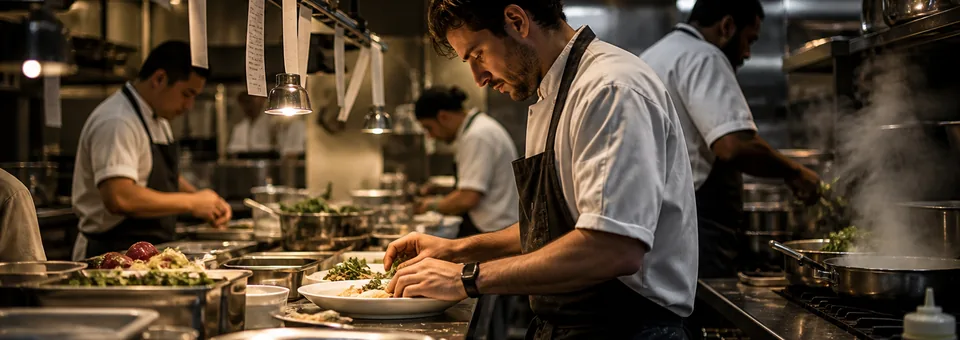
Busy restaurants
Venues preparing many orders at once.
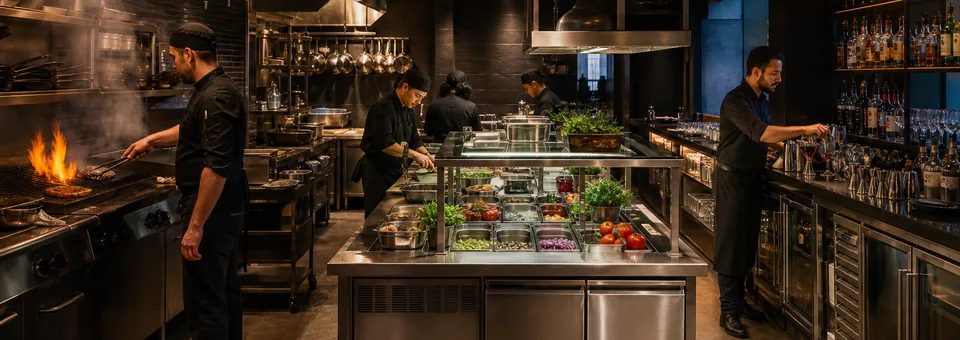
Multi-station kitchens
Restaurants with separate hot, cold, bar, and packing areas.
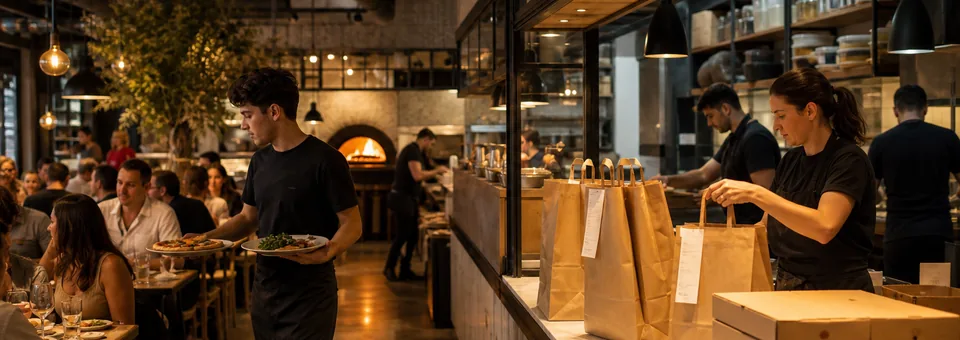
Dine-in + takeaway
Venues that take takeaway orders alongside table service.
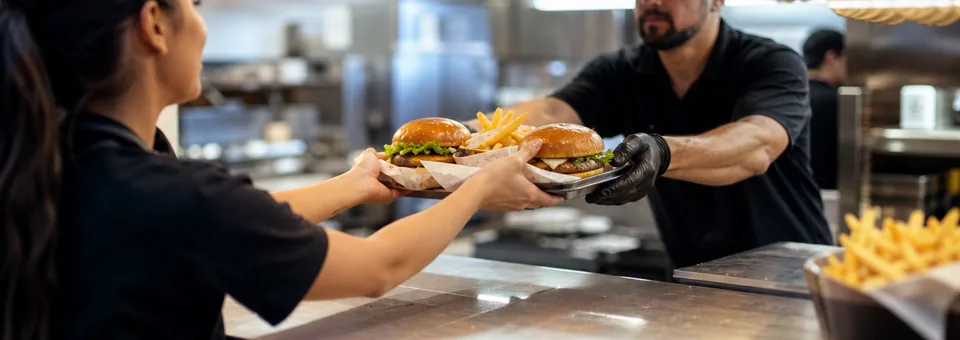
Quick-service restaurants
Businesses where fast prep and handoff matter.
FAQ
Frequently Asked Questions
Can a kitchen display replace a printer?
What is KDS?
Can orders be split by station?
Can prep time be tracked?
Is a kitchen display only for restaurants?
Move Your Kitchen Ops to a Digital Screen
Split orders by station, track prep time, and manage your full kitchen queue from one screen.
- Explore in detail: what is KDS · restaurant ordering system · setup